How DayLox works
From sign-up to unlocking – here's a step-by-step guide to using DayLox.
Your path to a locker
Sign in
Download the DayLox app and sign in with your Google, Apple, or Microsoft account. No separate registration needed.
Choose a section
At large venues, lockers are divided into sections. Choose the section nearest to you.
Find a free locker
The app shows available lockers in your chosen section. Go to the displayed locker.
Lock via NFC
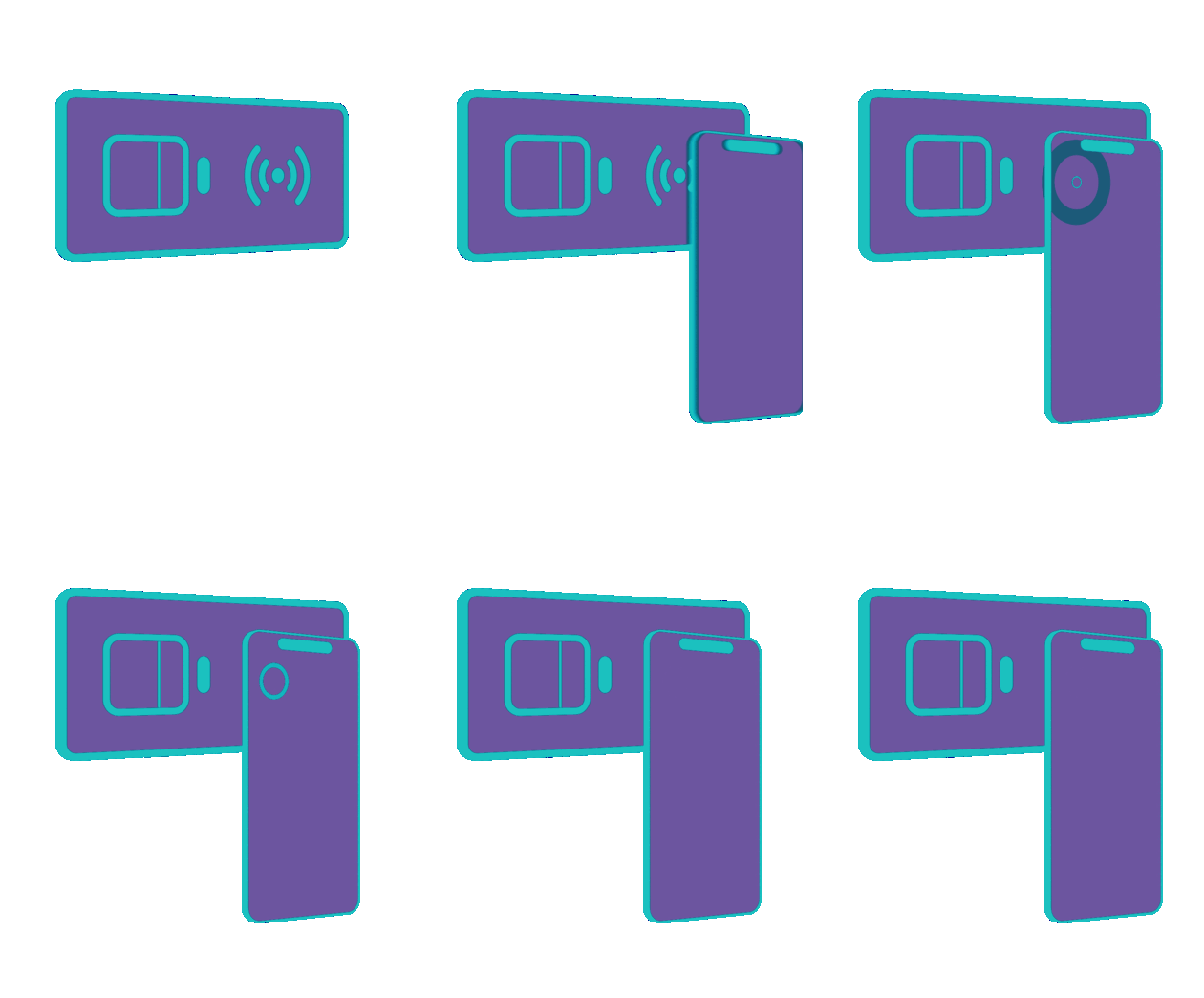
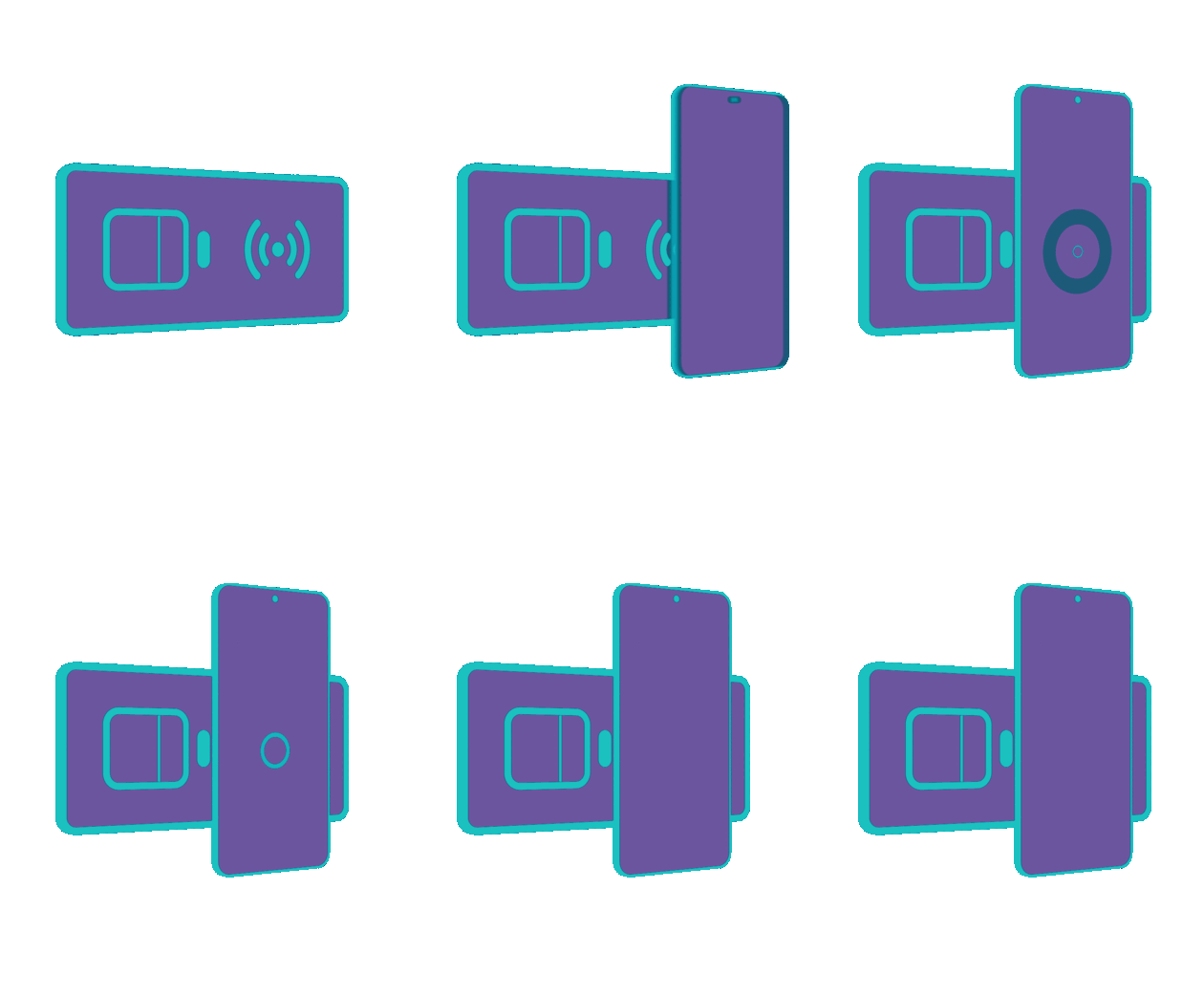
Hold your smartphone to the lock. The locker locks and your booking starts automatically.
Unlock via NFC
When you need your things, hold your phone to the lock again. The locker opens and the booking ends.
NFC Interaction
Just hold your phone to the lock – that's it. Locker management has never been this fast.
iPhone
Android
Understanding Sections
For large installations with hundreds or thousands of lockers, they are divided into sections. Each section corresponds to a physical area at the venue. This way, you can quickly find a free locker nearby without searching.
Offline Mode
Your locker works even without an internet connection. All actions are stored locally and automatically synced when you're back online. Your access to the locker is guaranteed at all times.
On-Site Support
Phone dead? No problem. On-site staff can open your locker. Every support action is logged and you'll be notified by email – full transparency.